
Slack Integration
Connect Vurbalize to your Slack workspace and receive instant alerts when high-value visitors engage, workflows trigger, and routing decisions fire — directly in the channels your team already uses.
Install the Slack Integration
Connect your Slack workspace to Vurbalize in a few clicks using secure OAuth.
Open Integrations
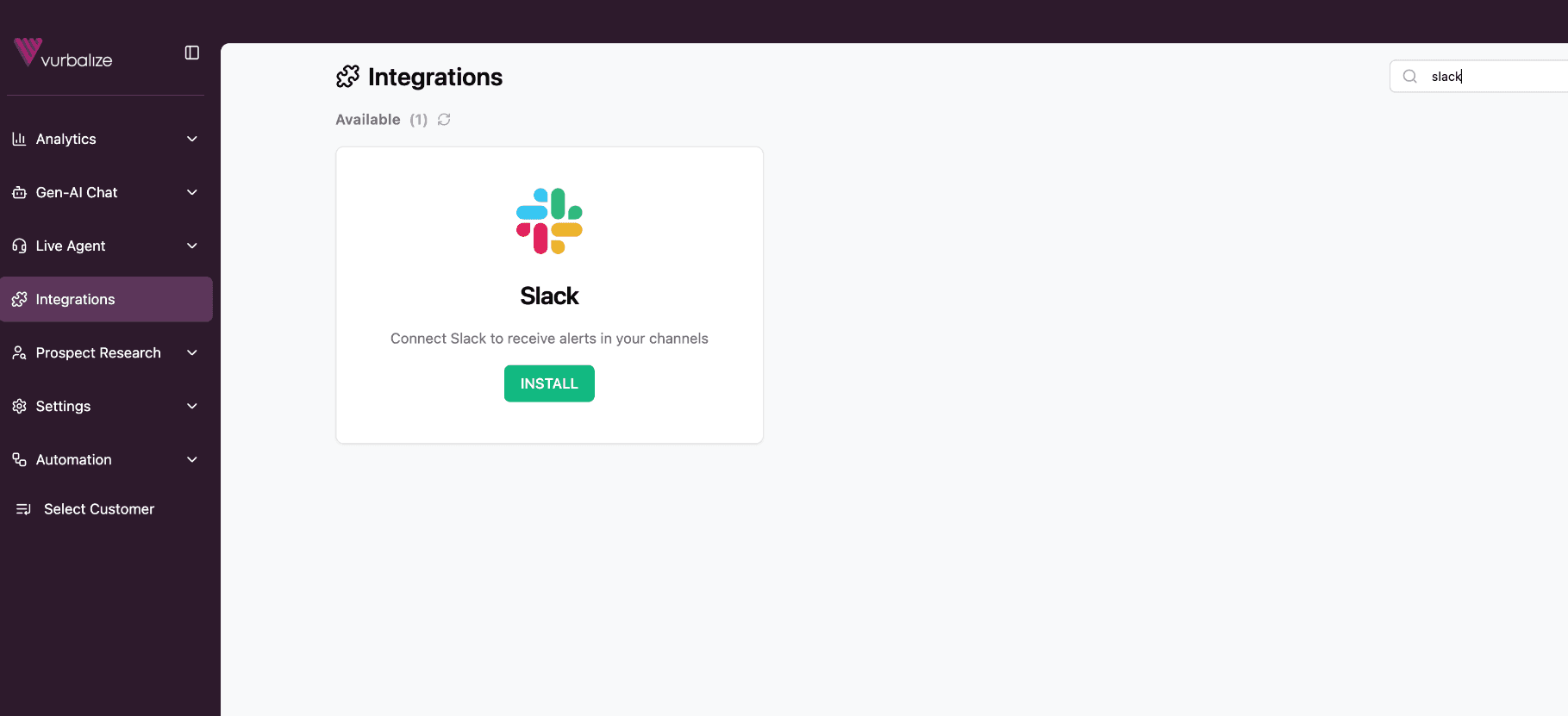
Navigate to app.vurbalize.ai → Integrations. Search for Slack and click Install.
Authorize on Slack
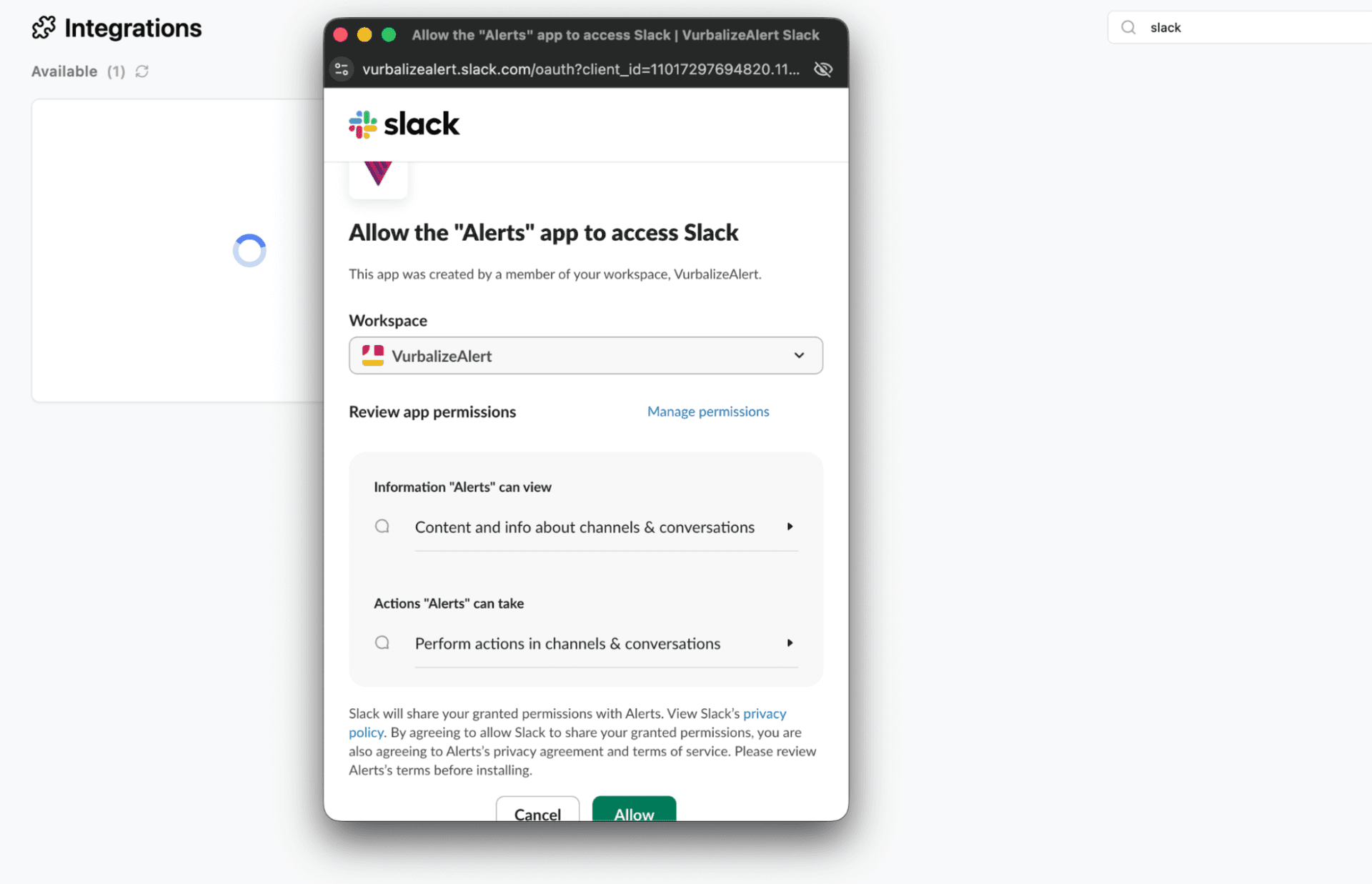
The Slack OAuth authorization screen opens. Select the workspace where you want to receive alerts, review the permissions, and click Allow.
Configure Alerts in a Workflow
Route alerts to any Slack channel directly from the Vurbalize workflow builder.
Add an Alert node
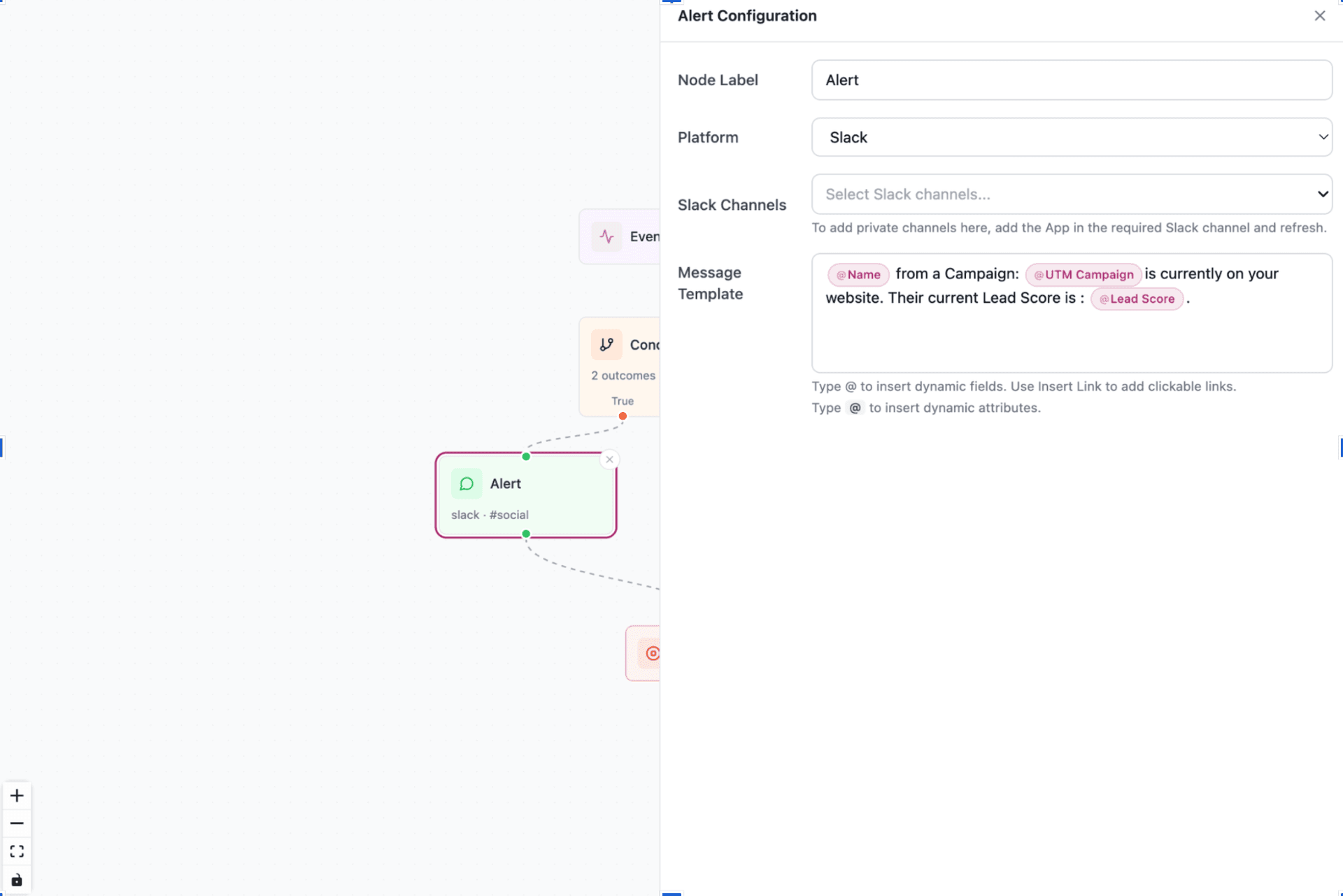
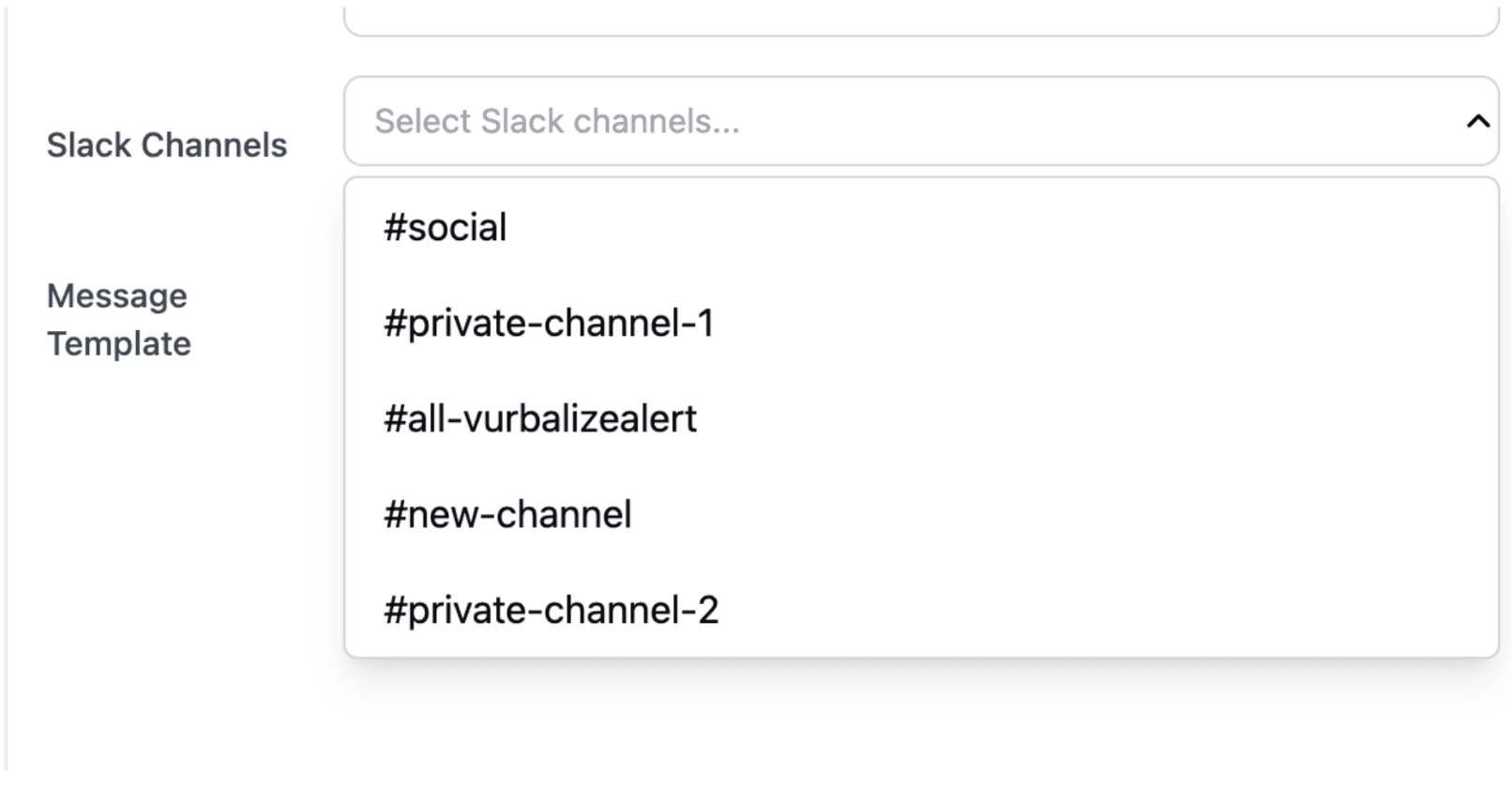
Open a workflow, then add or edit an Alert node. Set Platform to Slack. A Slack Channels dropdown will appear.
Select channels
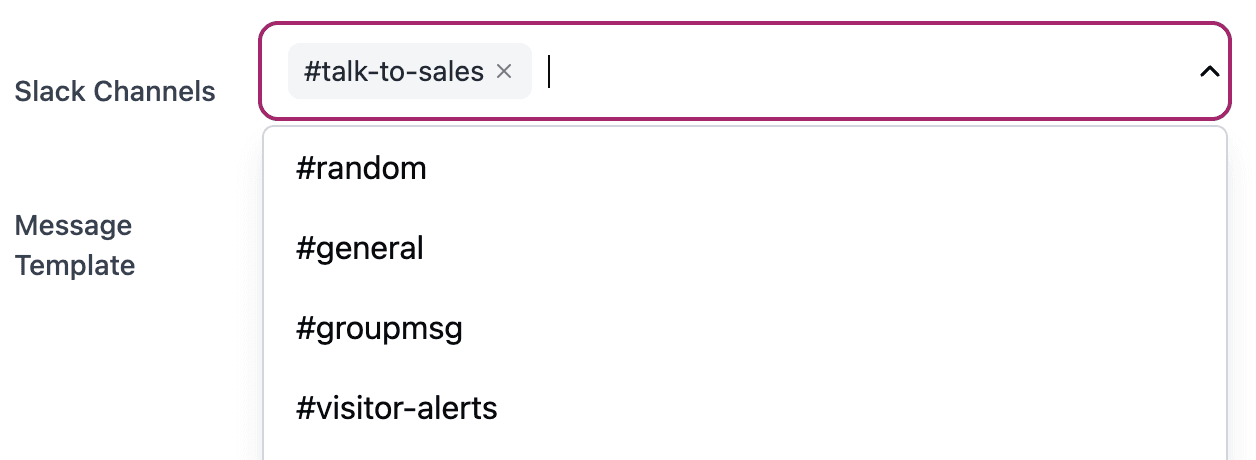
All public Slack channels in the connected workspace are automatically available. Select one or multiple channels — alerts will be delivered to every selected channel.
Using Private Slack Channels
Private channels require a one-time manual step inside Slack before they appear in the dropdown.
Locate the private channel in Slack
Open Slack and right-click the private channel you want to use.
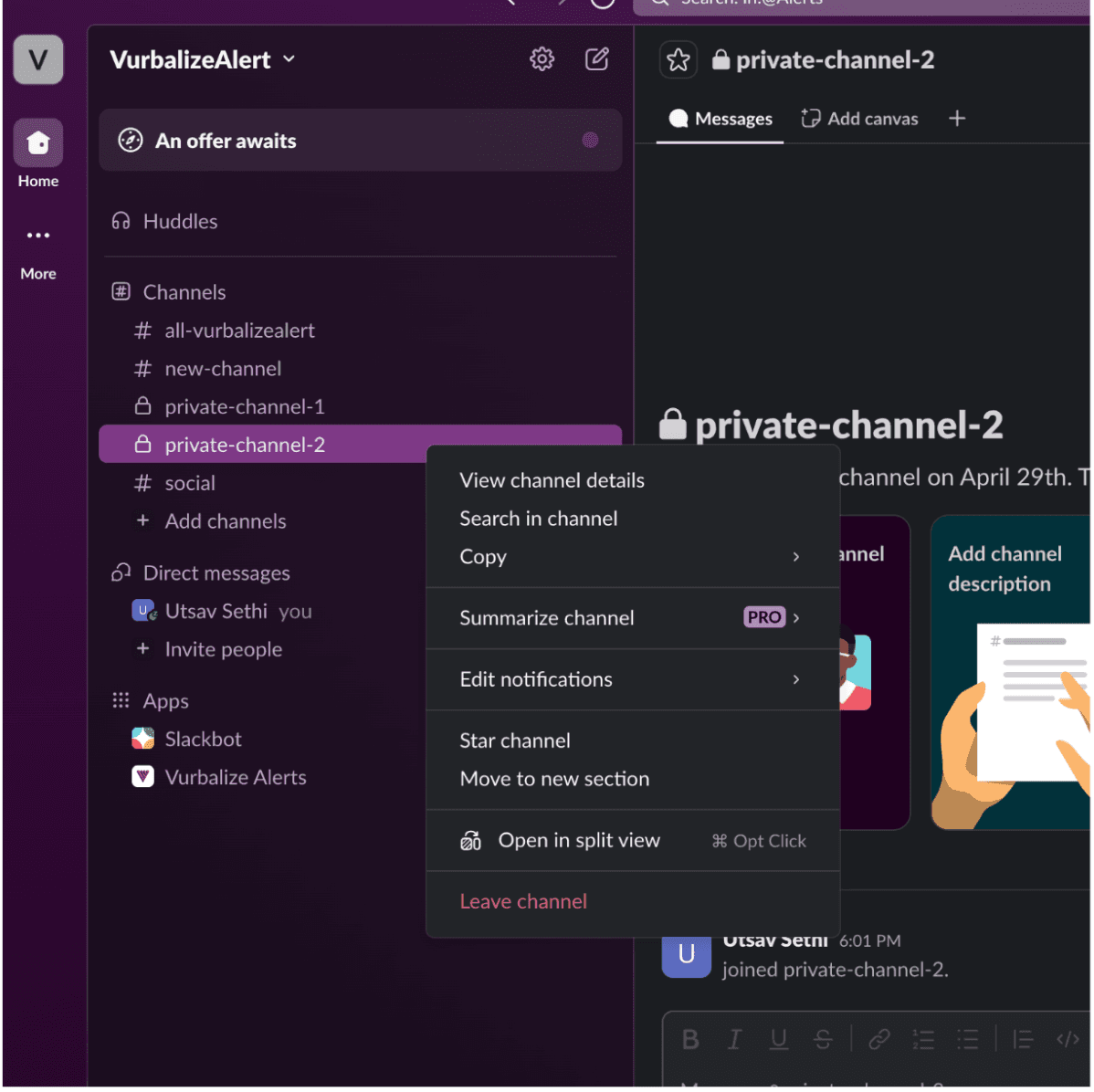
Open channel details
Click View channel details, then open the Integrations tab. Click Add an App and select Vurbalize Alerts.
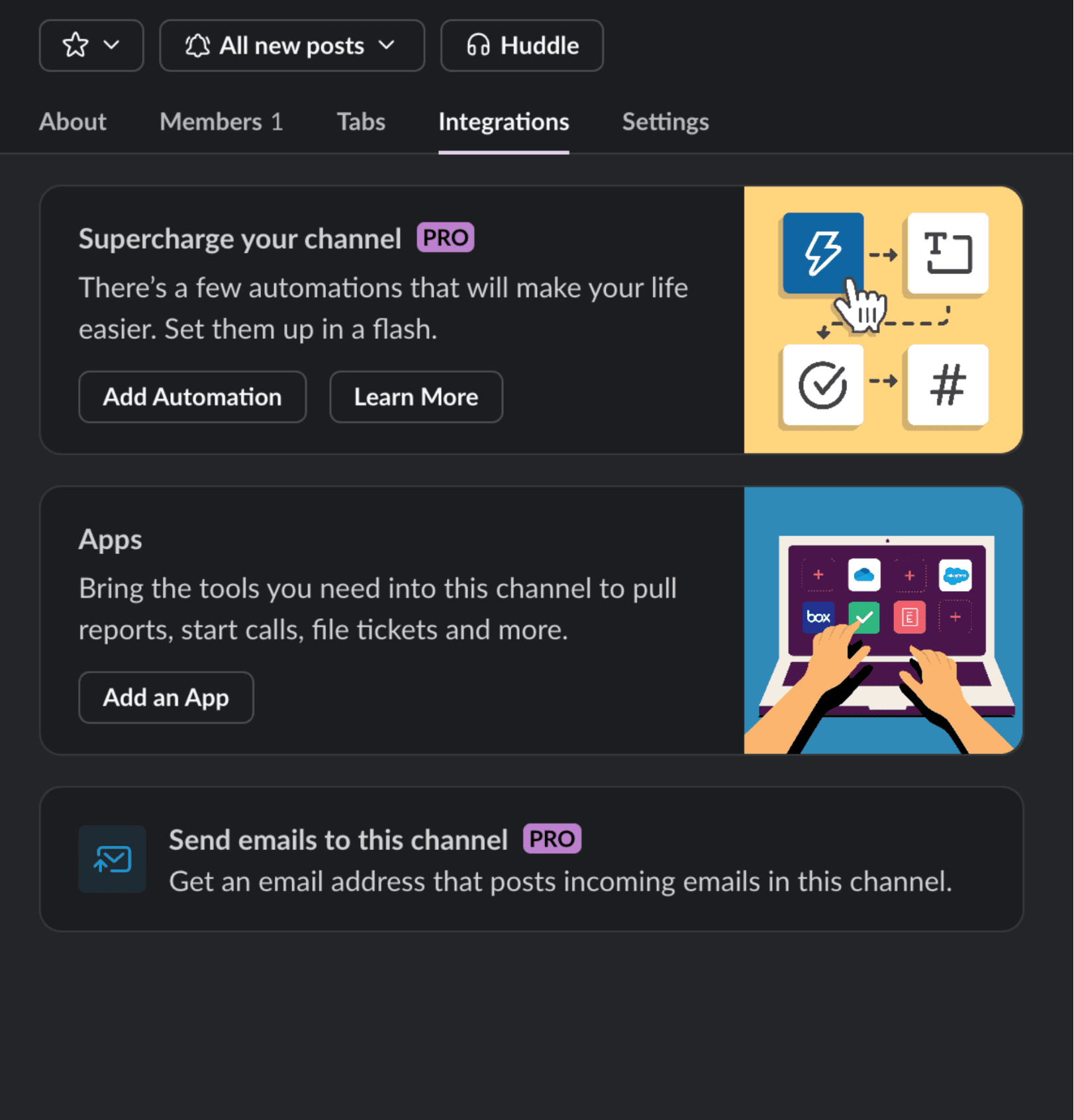
Add Vurbalize Alerts
Then return to Vurbalize and refresh the workflow page — the private channel will now appear in the dropdown.
Notes & Permissions
Slack Admin Approval
Some Slack workspaces restrict app installations. If you cannot complete installation, a Slack admin may need to approve the Vurbalize Alerts app. Contact your workspace administrator.
Private Channel Access
Slack does not allow apps to automatically access private channels. A private channel only becomes available in Vurbalize after the Vurbalize Alerts app is manually added to that channel inside Slack.
Alert Delivery
Once channels are selected in a workflow, alerts are sent automatically when the workflow triggers. You can select multiple channels simultaneously, and both public and authorized private channels are supported.
Frequently Asked Questions
Need Help?
If you run into any issues connecting Slack to Vurbalize, our team is ready to help.
Contact SupportWant to see this in action?
Get a prototype built on your website, or book a conversation with our team.